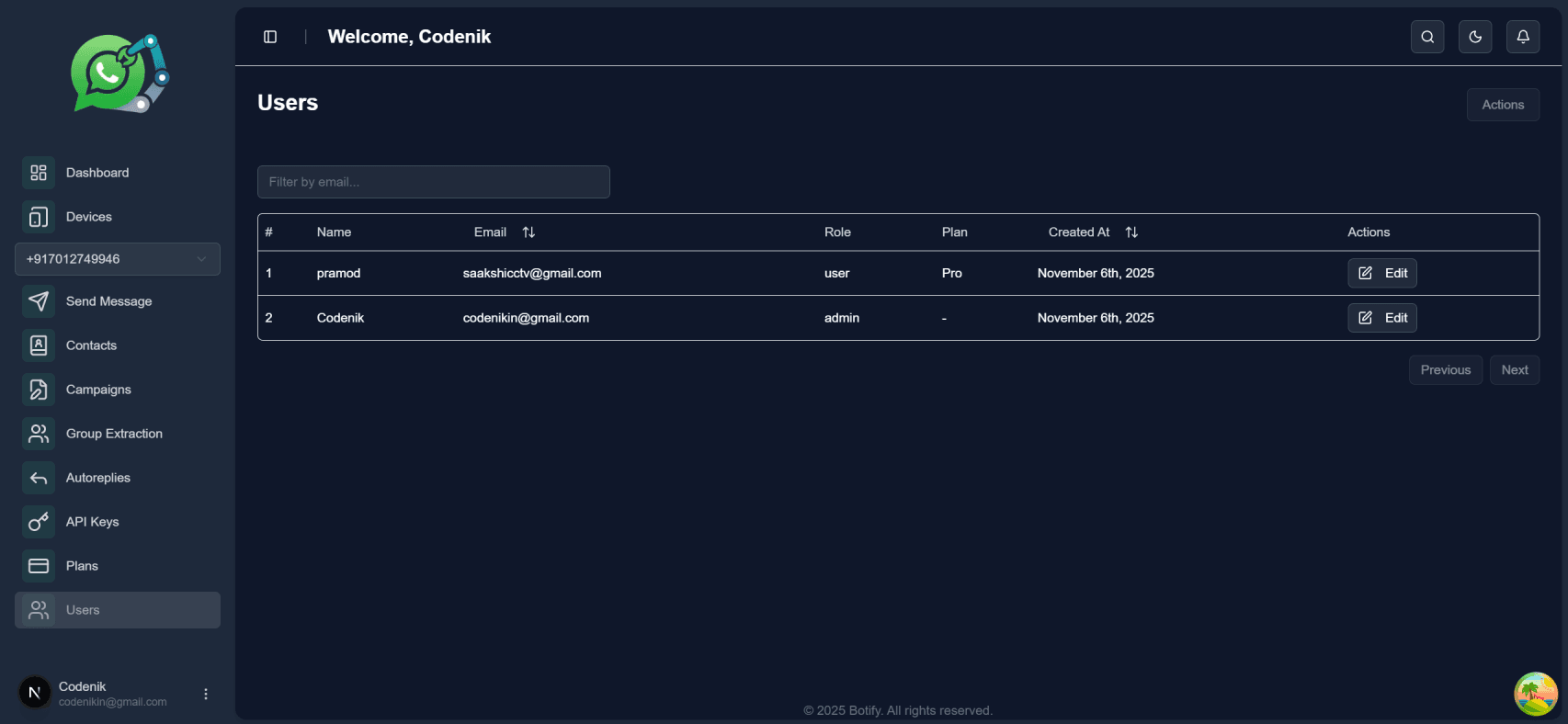
Dashboard Overvies
Login Page
After creating your admin account during onboarding, go to the Login Page and sign in using your credentials.
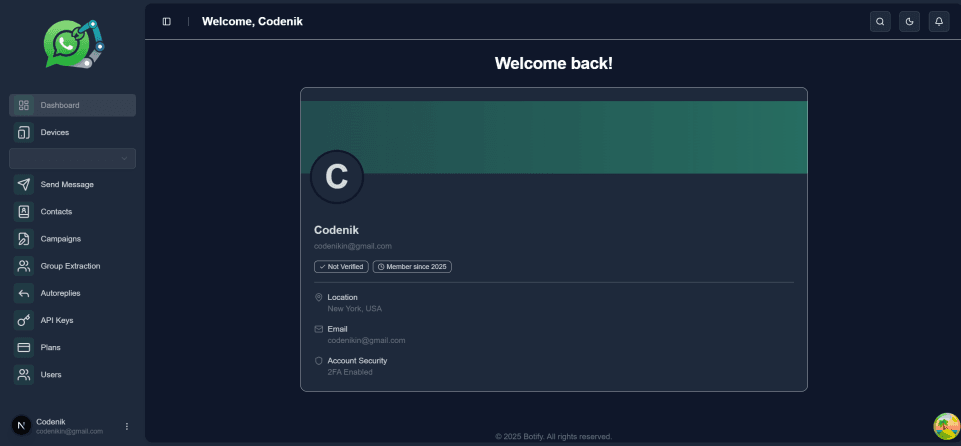
Once logged in successfully, you will be redirected to your Dashboard, where you can manage WhatsApp campaigns, view message statistics, and access all available system features.
Add Your First Device
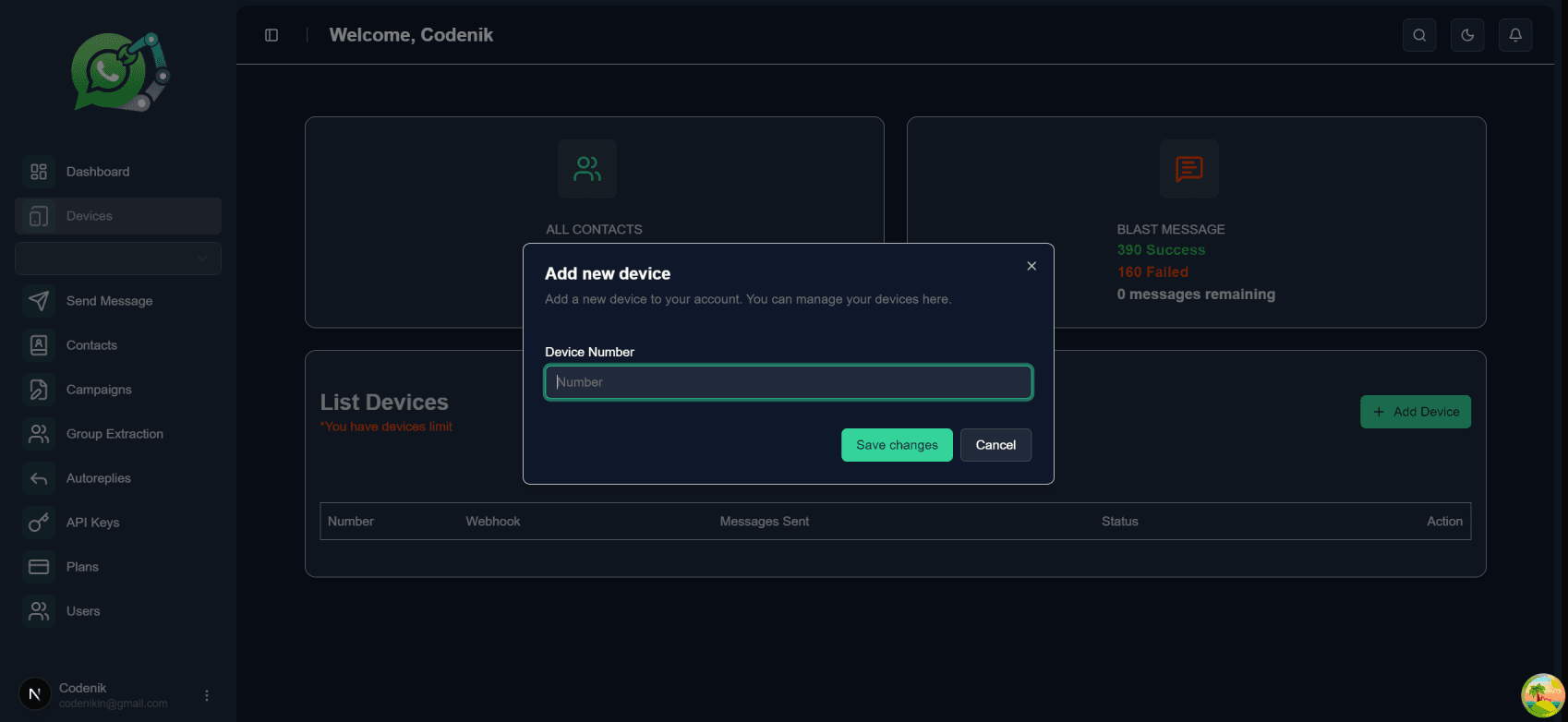
After logging in, navigate to the Devices section from the dashboard menu.
Click “Add Device”, then enter your mobile number (the one with WhatsApp installed).
Once submitted, the system will create and link your device.
Connect Your Device
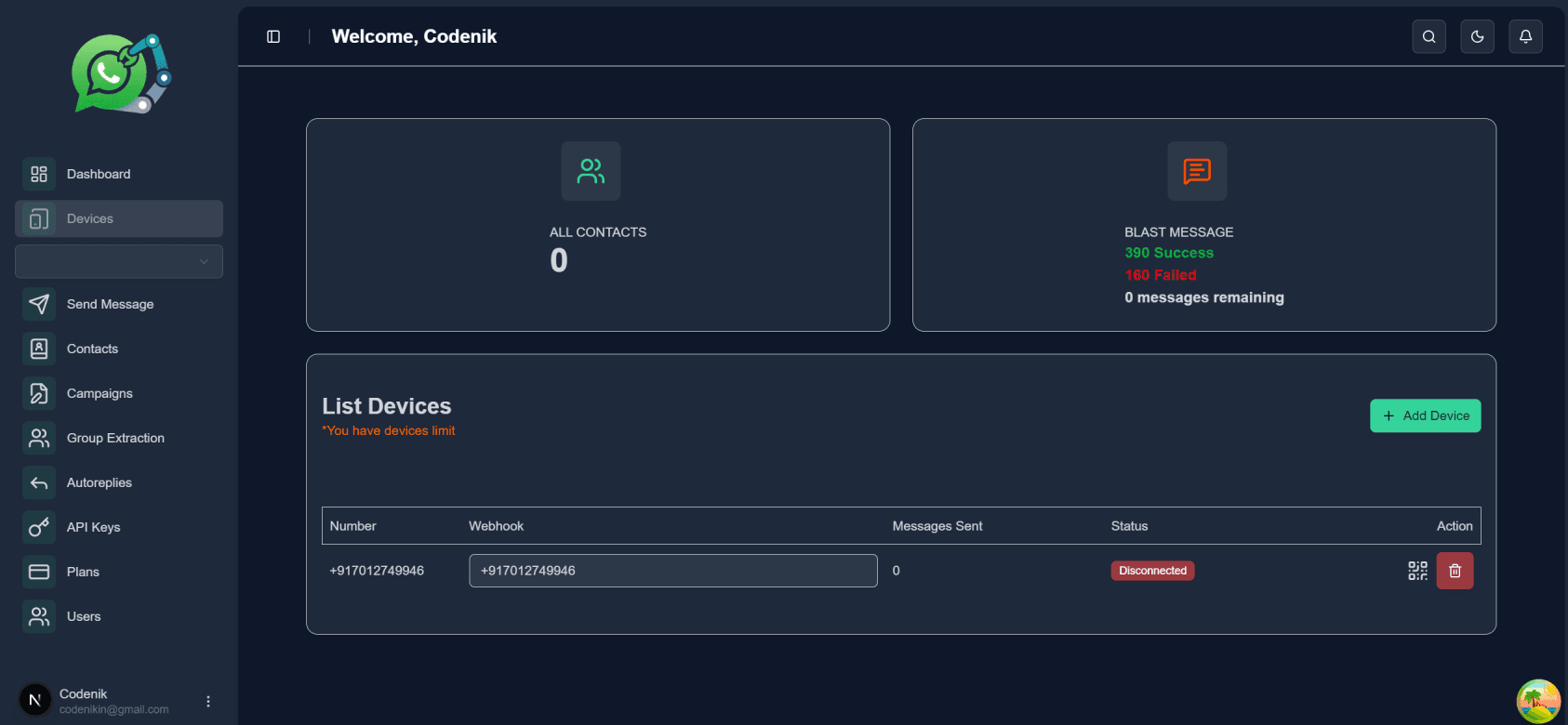
After creating your device, it will appear in the Device List with your registered mobile number.
Next to it, you’ll see an “Action” button labeled QR Code.
Click the QR Code button — a WhatsApp Web QR code will appear on the screen.
Scan QR code
Now, open WhatsApp on your mobile phone, go to Linked Devices, and scan the QR code to connect your WhatsApp account to the system.
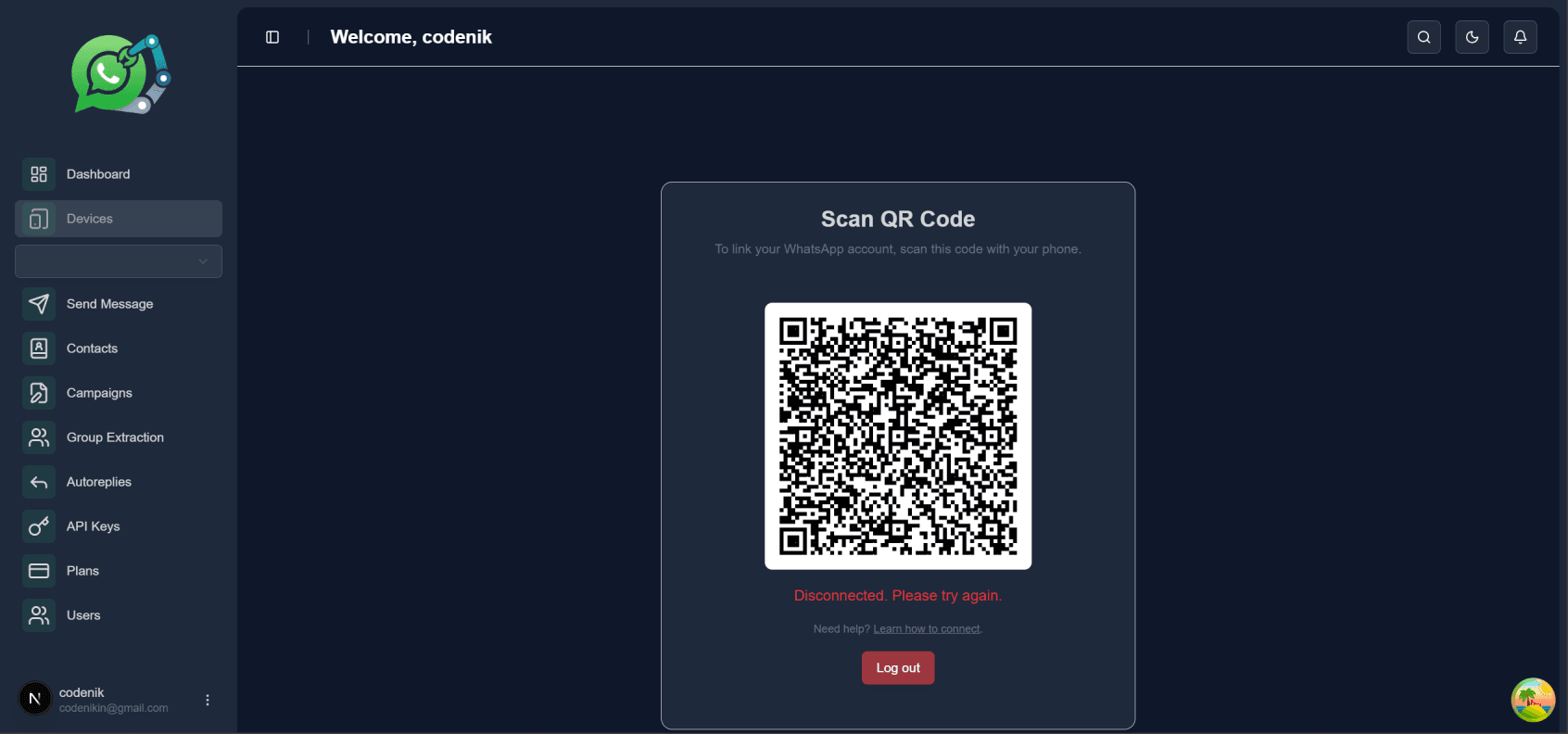
WhatsApp Connection Confirmation
Once your device is successfully connected, you will see a confirmation message — “Connected Successfully” — displayed on your dashboard.
Your WhatsApp profile image will also appear, confirming that the connection is active.
From this point, your account is ready to send and manage WhatsApp messages directly from the dashboard.
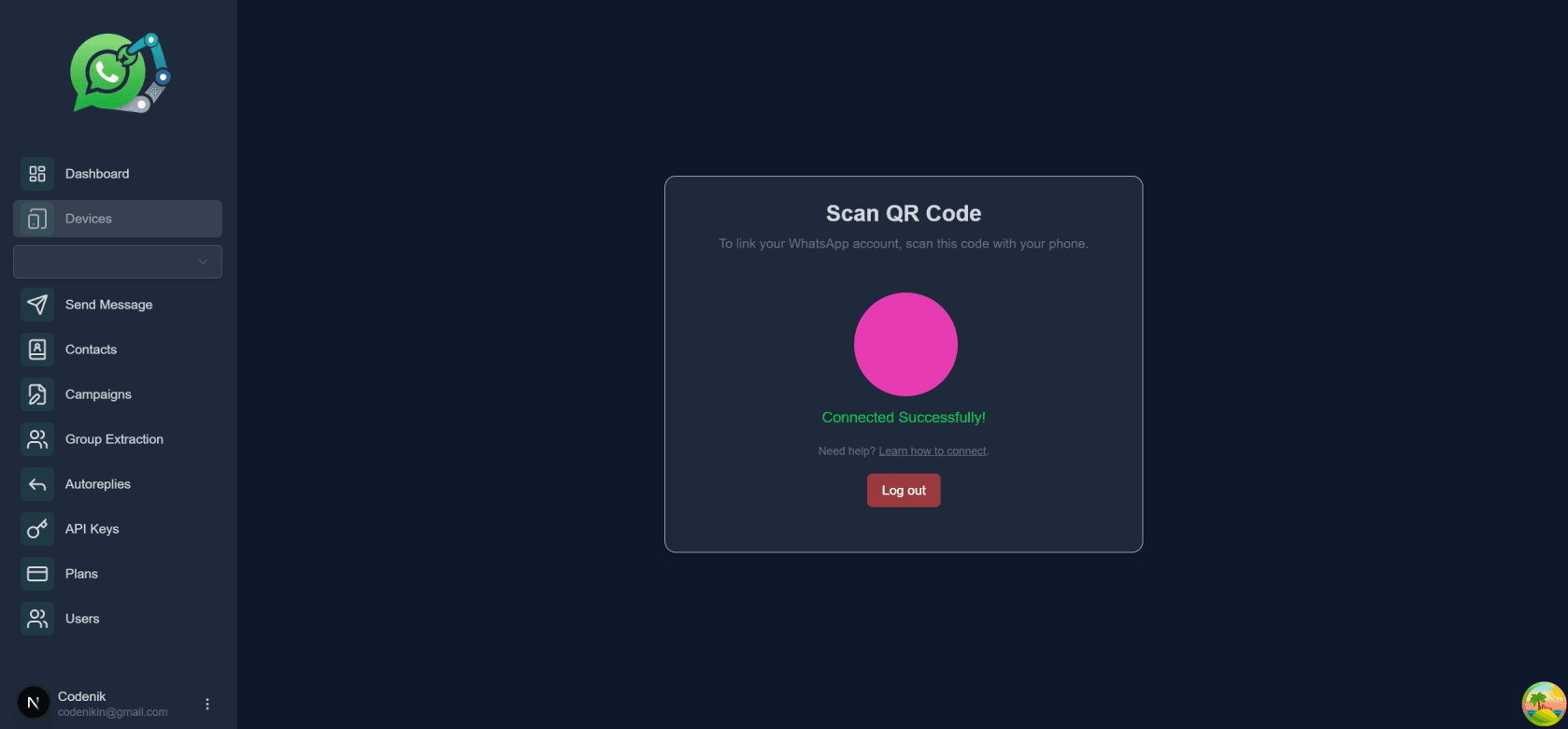
Adding Contacts
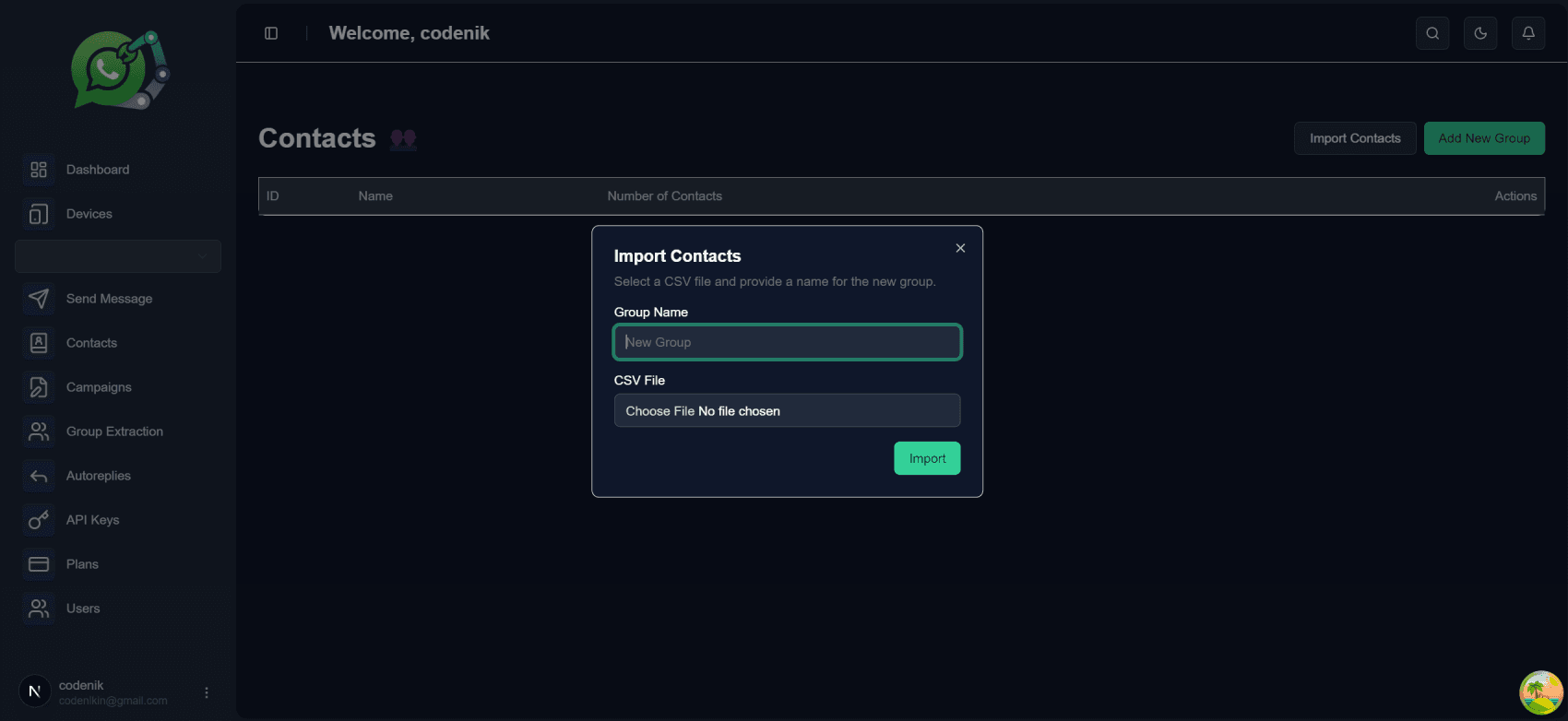
You can easily add multiple contacts at once using a bulk CSV import.
Navigate to the Contacts section in your dashboard.
Click “Import Contacts.”
Select your CSV file containing the contact data.
Click Upload to import all contacts into the system.
Make sure your CSV file follows the correct format before uploading. (A sample CSV format is attached for reference.)
 Note: Download the sample CSV file Download
Creating a Campaign
You can send bulk WhatsApp messages by creating a campaign.
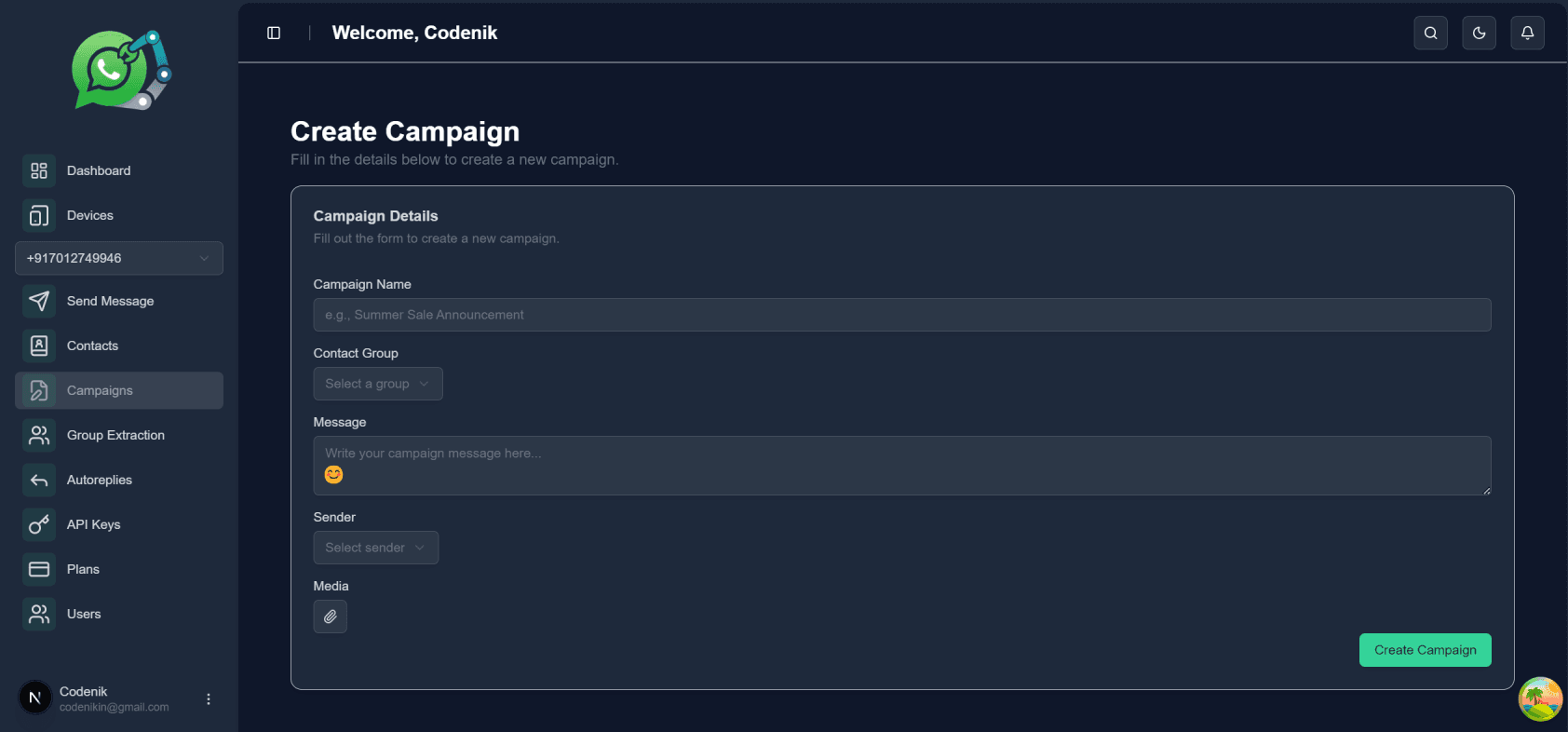
Navigate to the Campaigns section in your dashboard.
Click “Create Campaign.”
Enter a Campaign Name. Select the Group or contact list you want to send messages to.
Type your Message in the text box.
(Optional) Add emojis or attachments such as images to personalize your message.
Choose the Sender Number from the available devices.
Click “Create Campaign” to launch your bulk message campaign.
Your campaign will now start sending messages automatically based on your selected configuration.
Auto Reply Setup
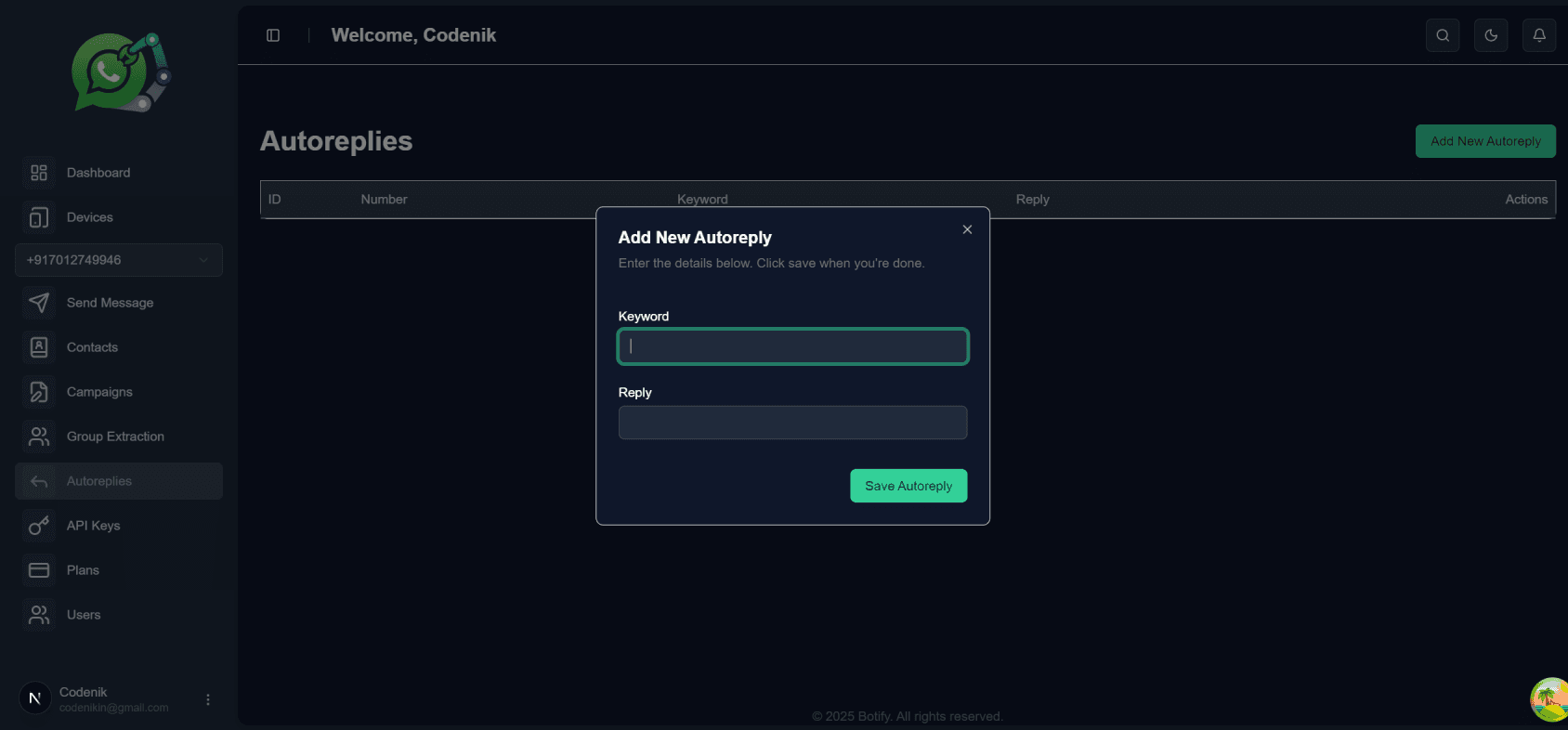
You can automate responses to incoming messages using the Auto Reply feature.
Navigate to the Auto Reply section in your dashboard.
Click “Add Auto Reply.”
Enter a Keyword — this is the word or phrase that will trigger the automatic response.
Type your Reply Message that should be sent when a user sends a message containing that keyword.
Click Save to activate the auto reply.
From now on, whenever a customer sends a WhatsApp message containing the specified keyword, the system will automatically respond with your predefined reply.
Creating a Plan
Our system is based on a SaaS (Software as a Service) model, allowing you to create custom plans and assign them to users.
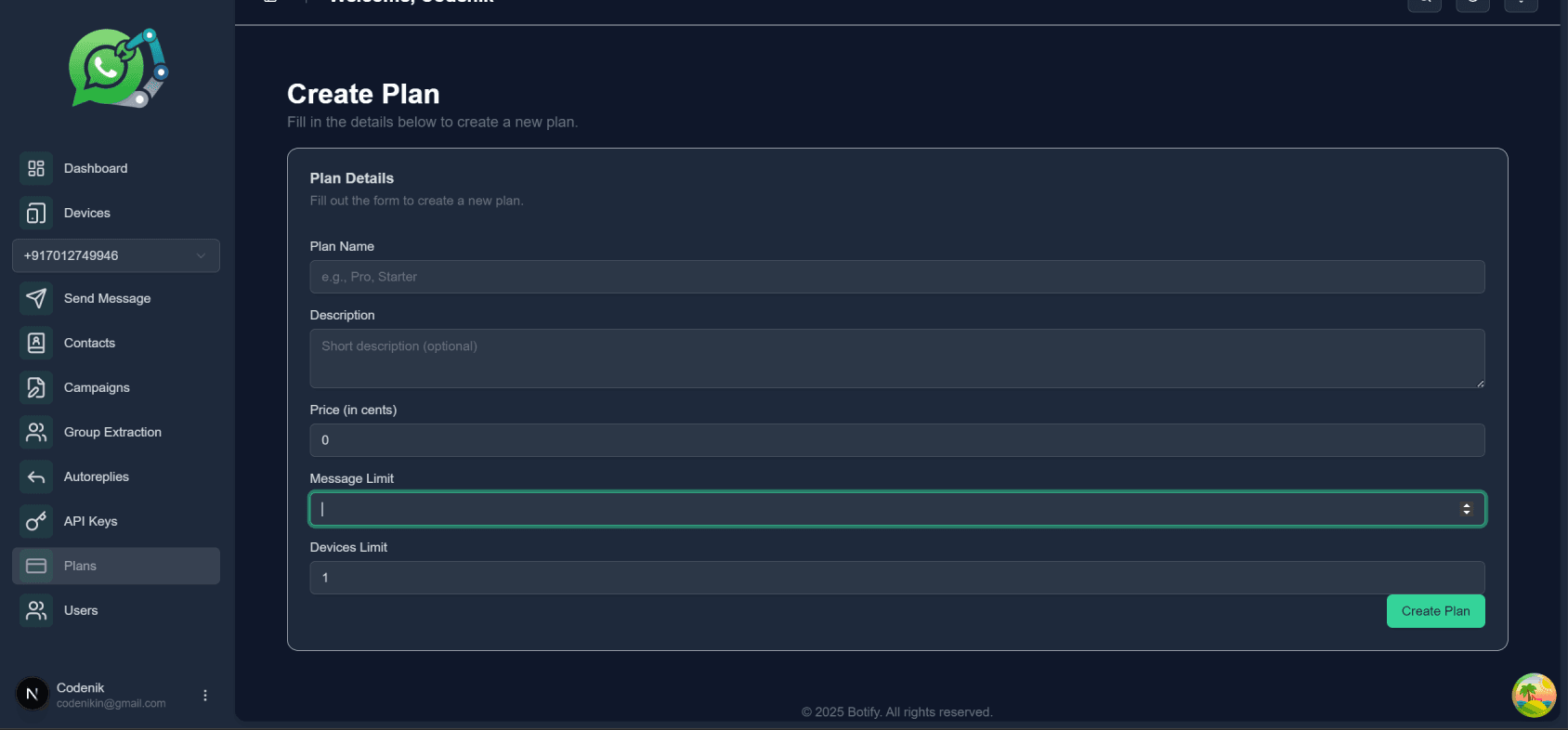
Navigate to the Plans section from the left sidebar.
Click “Create Plan.”
Enter the Plan Name, Description, Price, and Message Limit.
For example, if you set a limit of 1000 messages, the user will be able to send up to 1000 WhatsApp messages per day.
Set the Device Limit — this defines how many WhatsApp numbers a user can connect under their dashboard.
For example, if you set the device limit to 5, the user can connect up to 5 WhatsApp numbers.
Click Create Plan to make it available for assignment to users.
Assigning a Plan to a User
Users can sign up for the system using the Sign-Up Form available on the website.
Once a user registers, their account will appear under the Admin Dashboard.
From there, the Admin can: Assign a Plan – Select a plan from the available options and assign it to the user so they can start using the WhatsApp services according to the plan limits.
Manage User Access – The admin can ban or deactivate any user account at any time directly from the admin dashboard if necessary.
This feature ensures complete control over user access and plan management within the system.